
When submitting a project schedule, you will often also need to submit a PDF or printed copy of the project. In Oracle Primavera Cloud, you can print a variety of pages – such as the Activities page or the Resource Usage page. However, when attempting to print these pages, it’s useful to first format them. OPC displays a lot of information by default – often too much to fit on one page. Because of this, you may want to set up different print layouts to show only the information you need. You can then save these print layouts to Views for reuse on other projects.
This article will cover how to print and format pages in Oracle Primavera Cloud.
Turning On Enhanced Printing
Before being able to print a page in Oracle Primavera Cloud, you first need to turn on Enhanced Printing. Enhanced Printing allows you to use OPC’s print formatting tools to print documents. If this isn’t turned on, you won’t be able to use the program’s dynamic print formatting options. Enhanced Printing should be turned on by default. To check if it’s turned on, select the User Menu icon, and then Preferences.
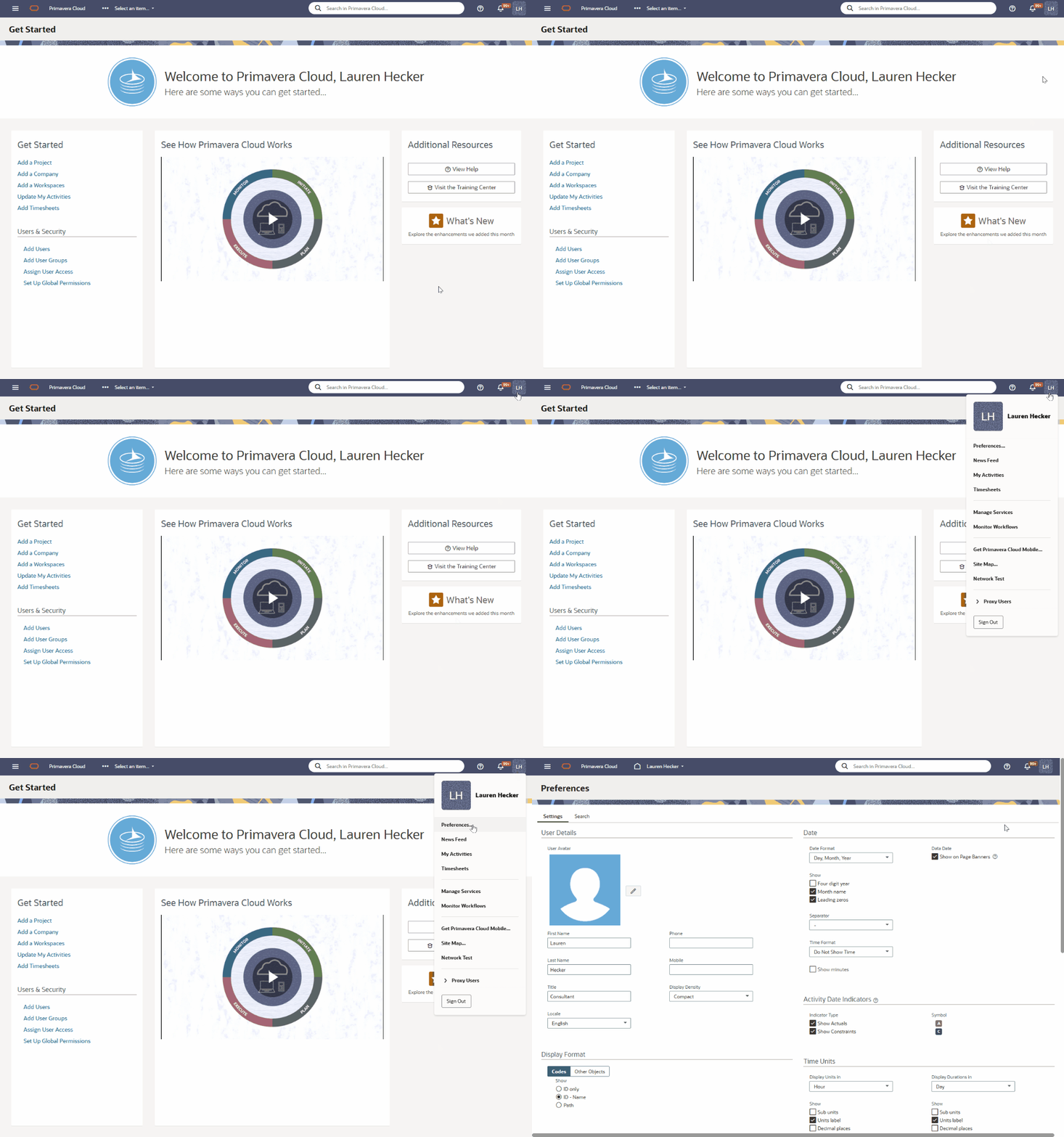
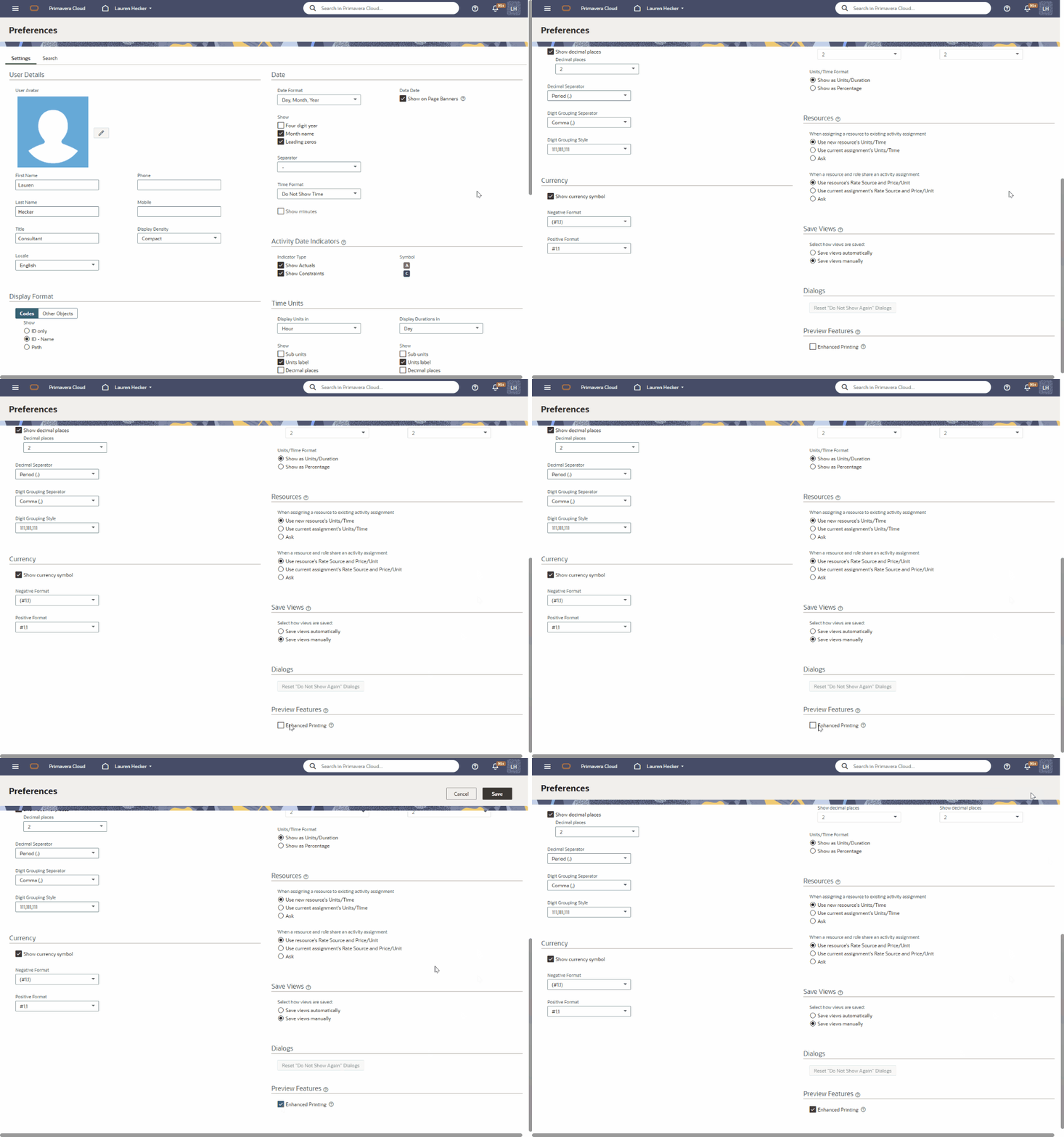
Scroll down to the bottom of the screen. Under Preview Features, ensure that Enhanced Printing is checked. If it’s not, select it and press the Save button in the upper right hand corner.
Printing a Page in Oracle Primavera Cloud
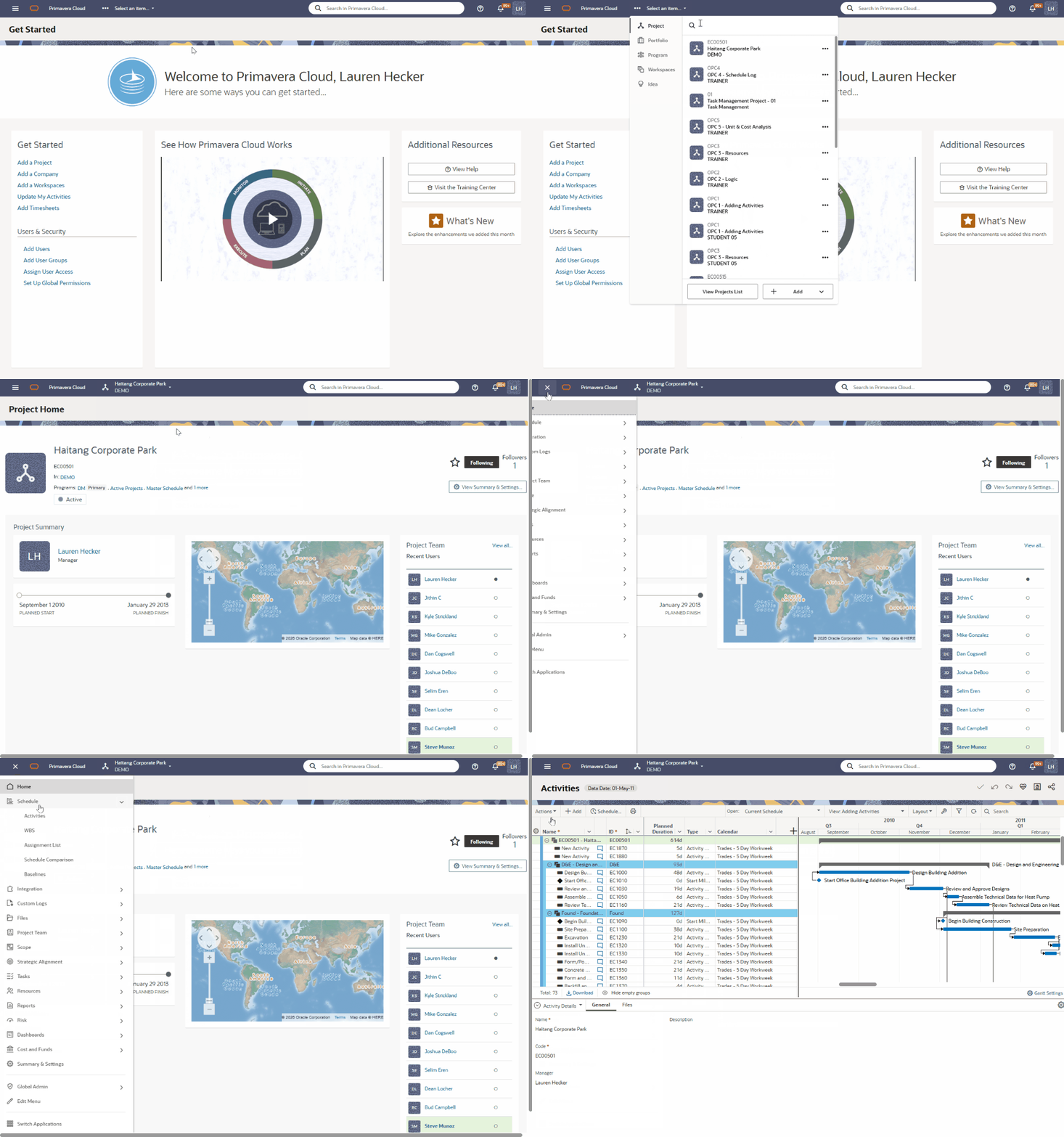
Any page that you can print in OPC will feature a Print icon. You can print many pages within the program, such as Resource Assignments or Projects. In this example, we will print out the Activities page for a specific project. To start, open up a Project and navigate to the Activities screen within the Schedule app.
Before printing, you should format the page as needed. You can do this by switching to another View, or by adjusting the screen manually. Any adjustments you make to the view – such as switching columns or adjusting Gantt Chart bars – will reflect in the printout. The printout will take the screen exactly as it is – so you may even want to create a new View specifically for printing.
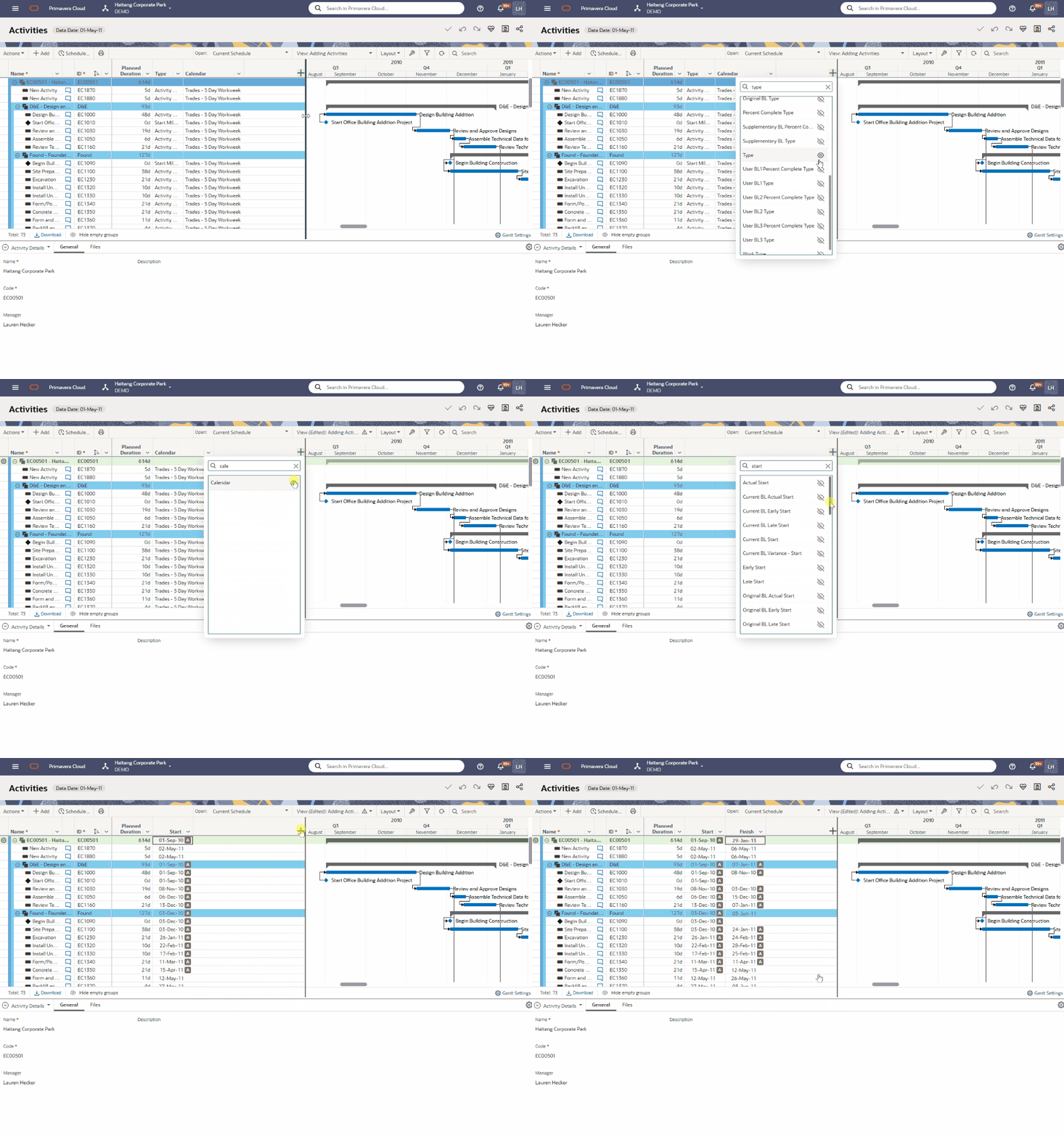
In this example, I’ll make a few adjustments to the View. I’ll start by switching the columns that appear by selecting the + button above the table. Here, I’ll use the search bar to show and hide columns. For this print out, I’ll set the table to display the ID, Name, Planned Duration, Start, and Finish columns.
I’ll also adjust how the Gantt Chart looks by selecting the Gantt Settings button at the bottom of the chart. Here, I’ll turn on the Data Date line and the Relationship Lines. Lastly, I’ll adjust the time scale using the Timescale dropdown menu.
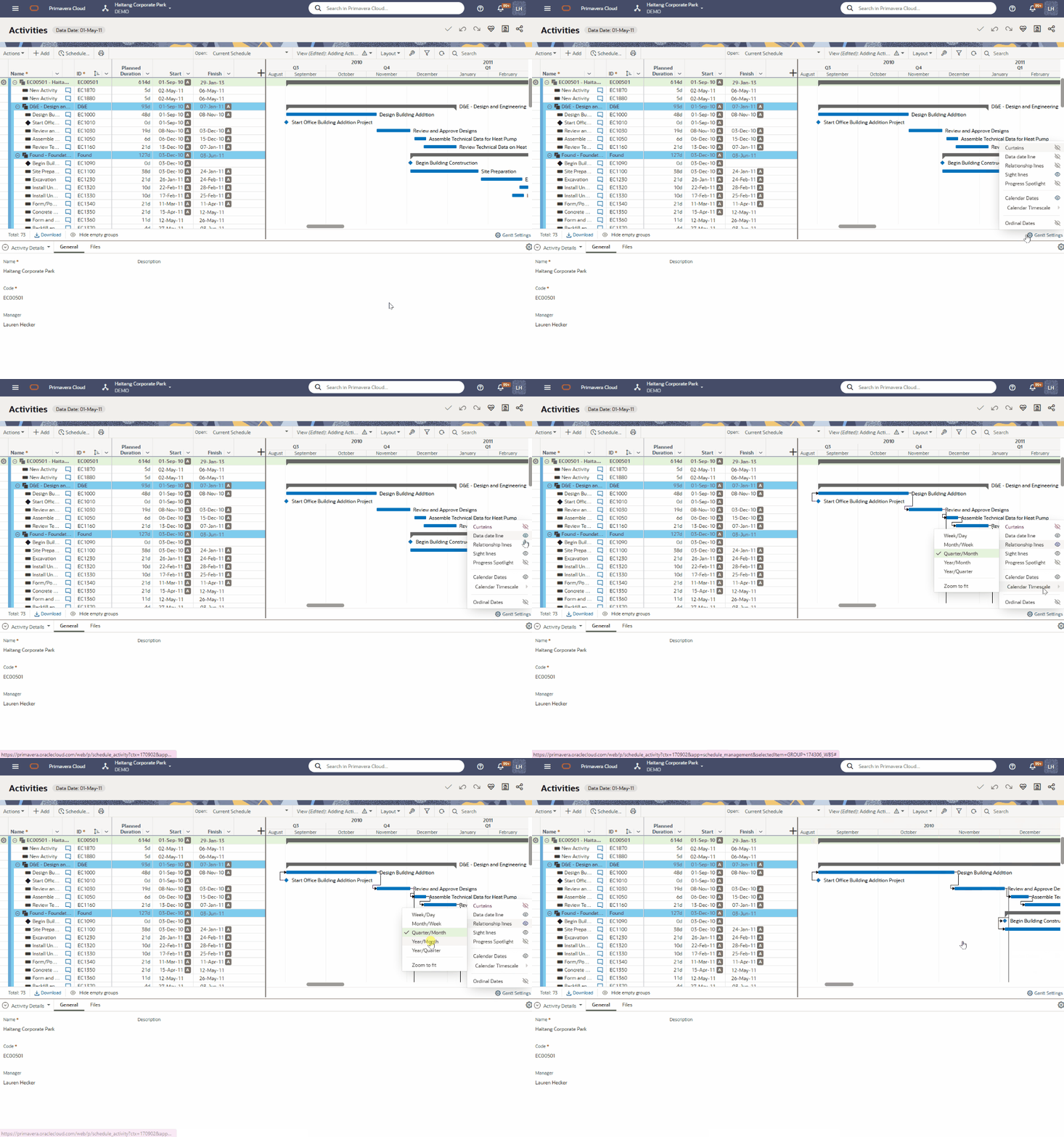
Once the layout is set as desired, select the Print button. The Print Options window will open, where you can see the current print view and adjust the print layout.
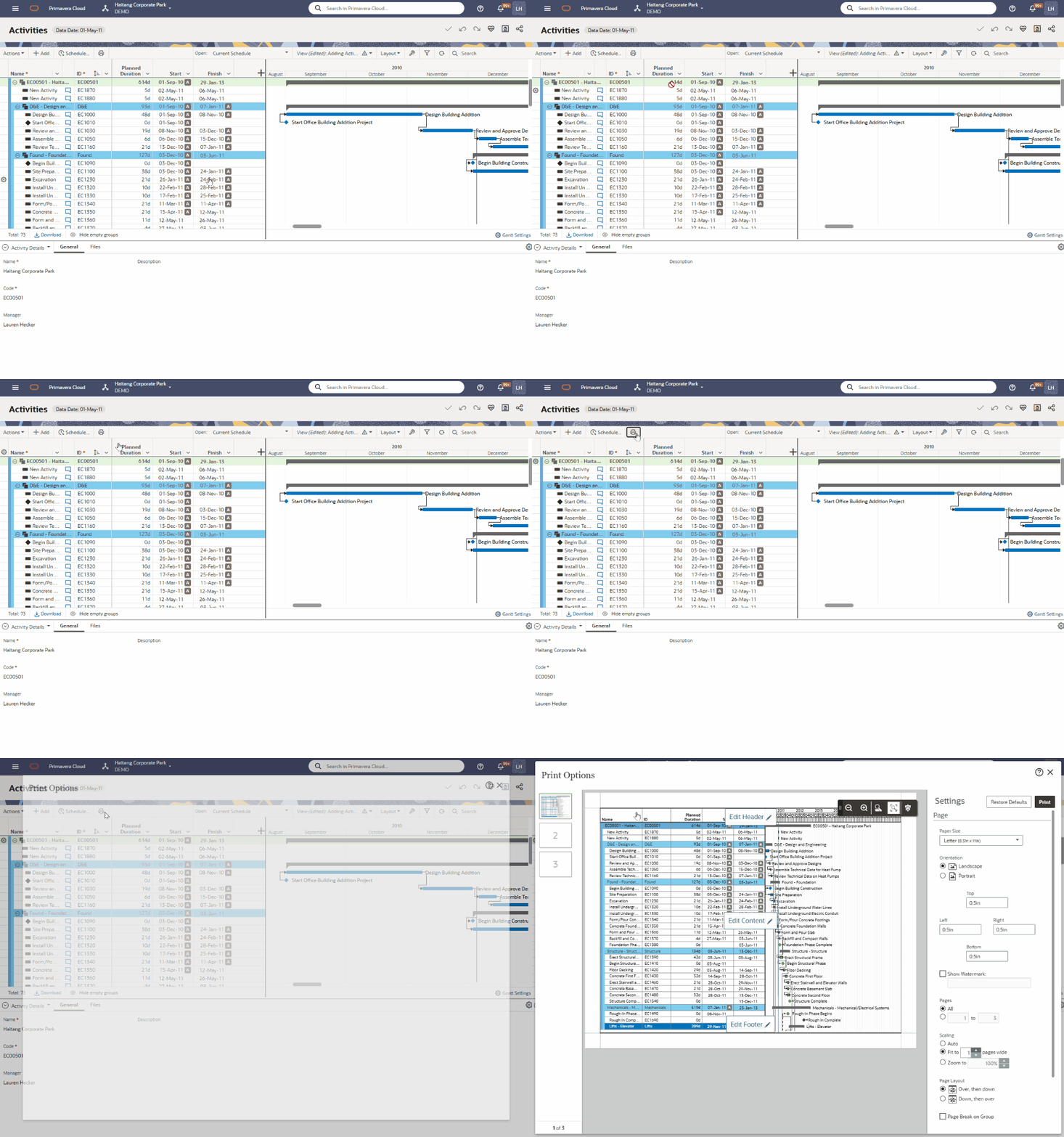
Adjusting the Print Layout
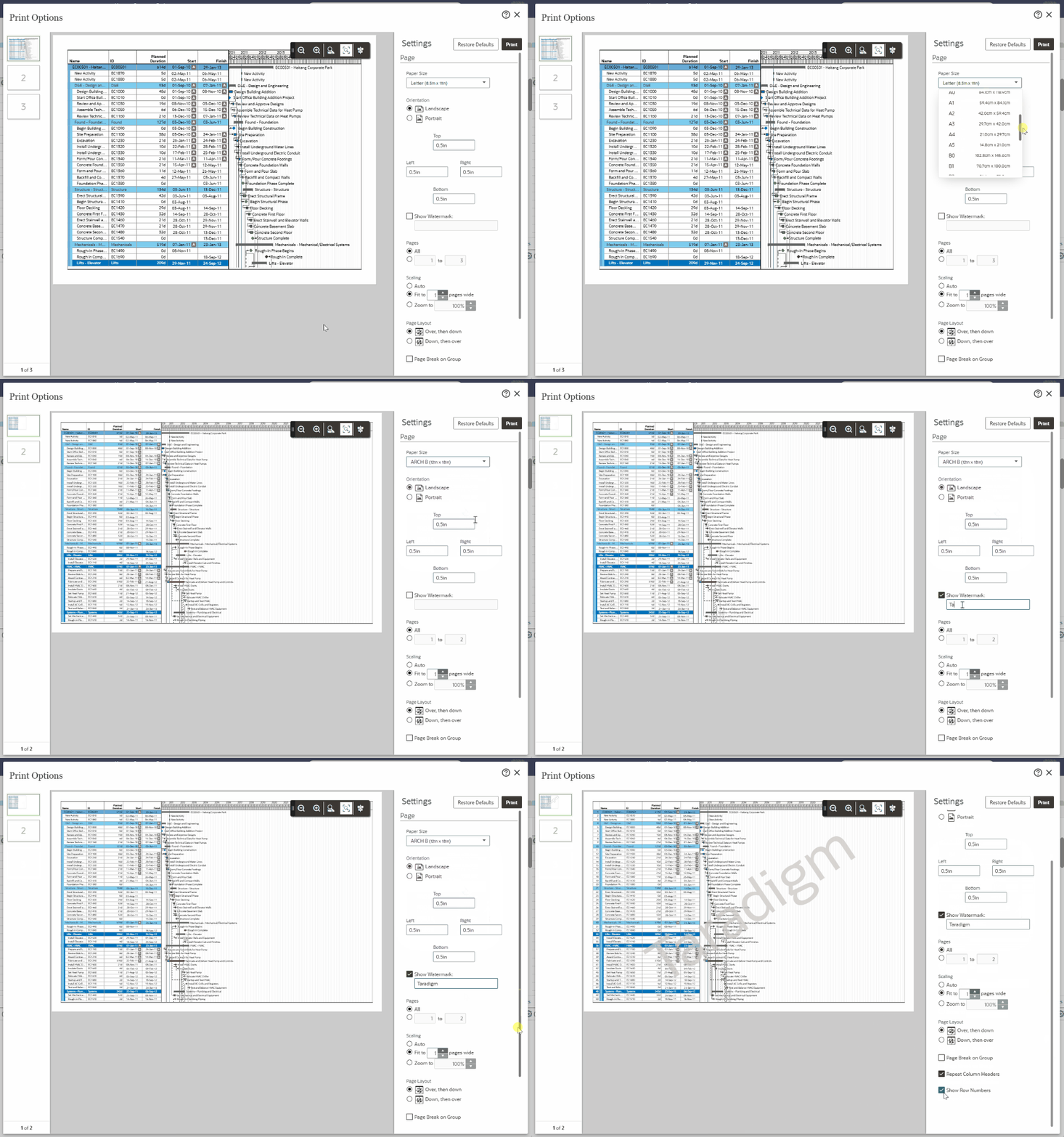
There are a variety of options to adjust the print layout. To start with, let’s look at the options under Settings. Here, we can configure how the page will print – such as the page size, the orientation, and the margins. You can also add a watermark to the page by selecting Show Watermark and entering in text.
Settings
In this example, I’m going to adjust the print format quite a bit. First, I’ll adjust the paper size using the Paper Size dropdown. If you’re planning to print to a PDF, rather than a physical printer, it’s recommended to use a larger page size. If you leave the default of 8.5″ x 11″, your printout will most likely have many pages. In this case, I’ll choose ARCH B. I’ll add a watermark with my company’s name. I’ll also turn on Repeat Column Headers, which will display the column headers on each page – rather than just the first. Lastly, I’ll turn on Show Row Numbers, which will add numbers next to each activity row – just like in Excel. This can be useful for navigating the printed copy.
Edit Content
Hovering your cursor over the print preview will provide more page editing options. We can adjust the content that appears in the printout by selecting Edit Content. This will change the Settings that appear on the right side of the screen.
Under Options, you can choose what to display on the Gantt Chart. I had already adjusted these settings with my View – but if I hadn’t, I could adjust it here. For my printout, I’ll turn off the Sight Lines. This will remove the vertical lines that appear on the Gantt Chart.
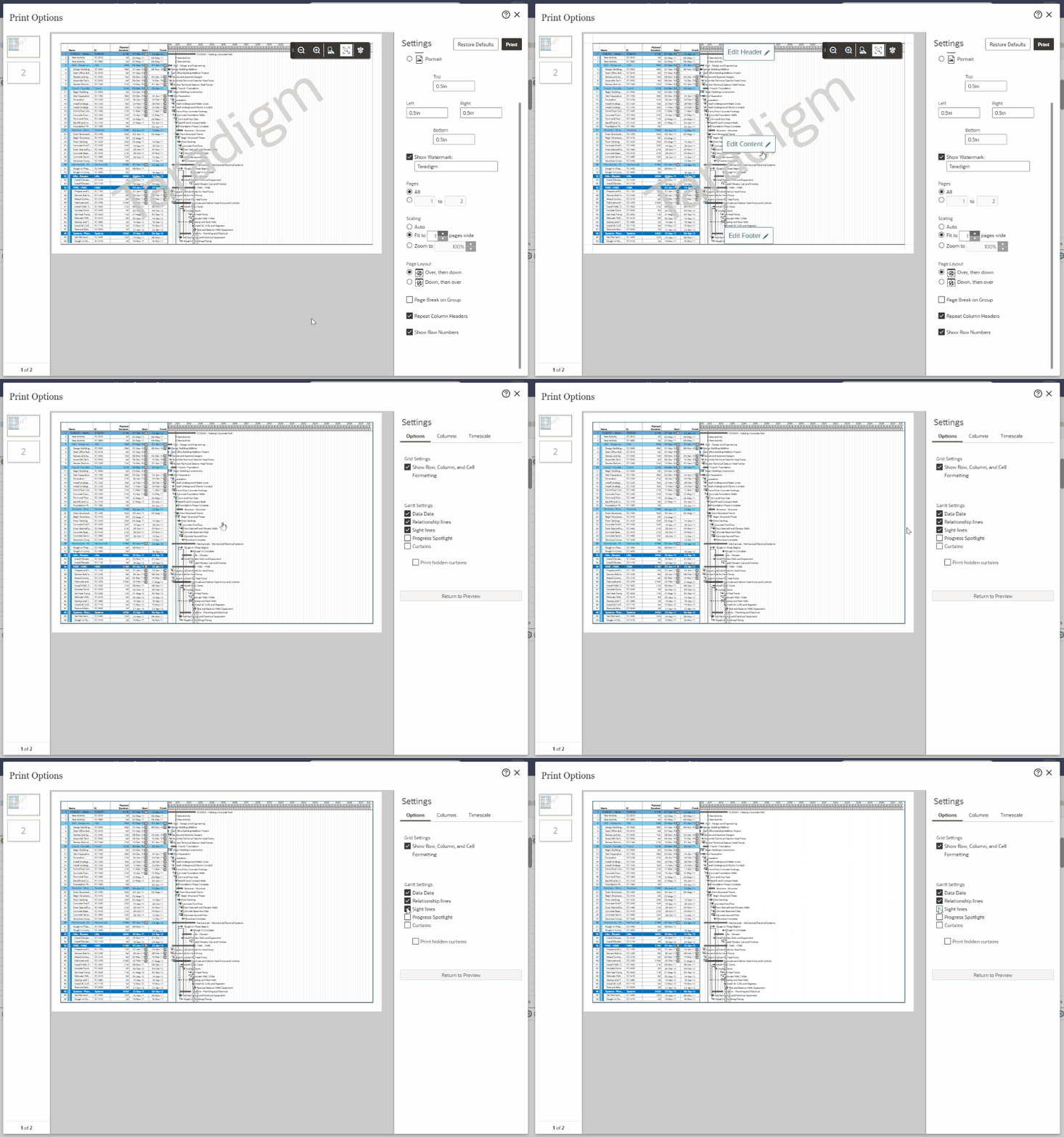
Under Columns, you can pick and choose which columns to display in the table. You’ll have the option of turning on or off any of the columns displaying in the layout. You can only adjust the columns currently displaying in the table – which is why it’s important to set up your columns before printing. I’ll turn on all the columns by selecting Show All Columns.
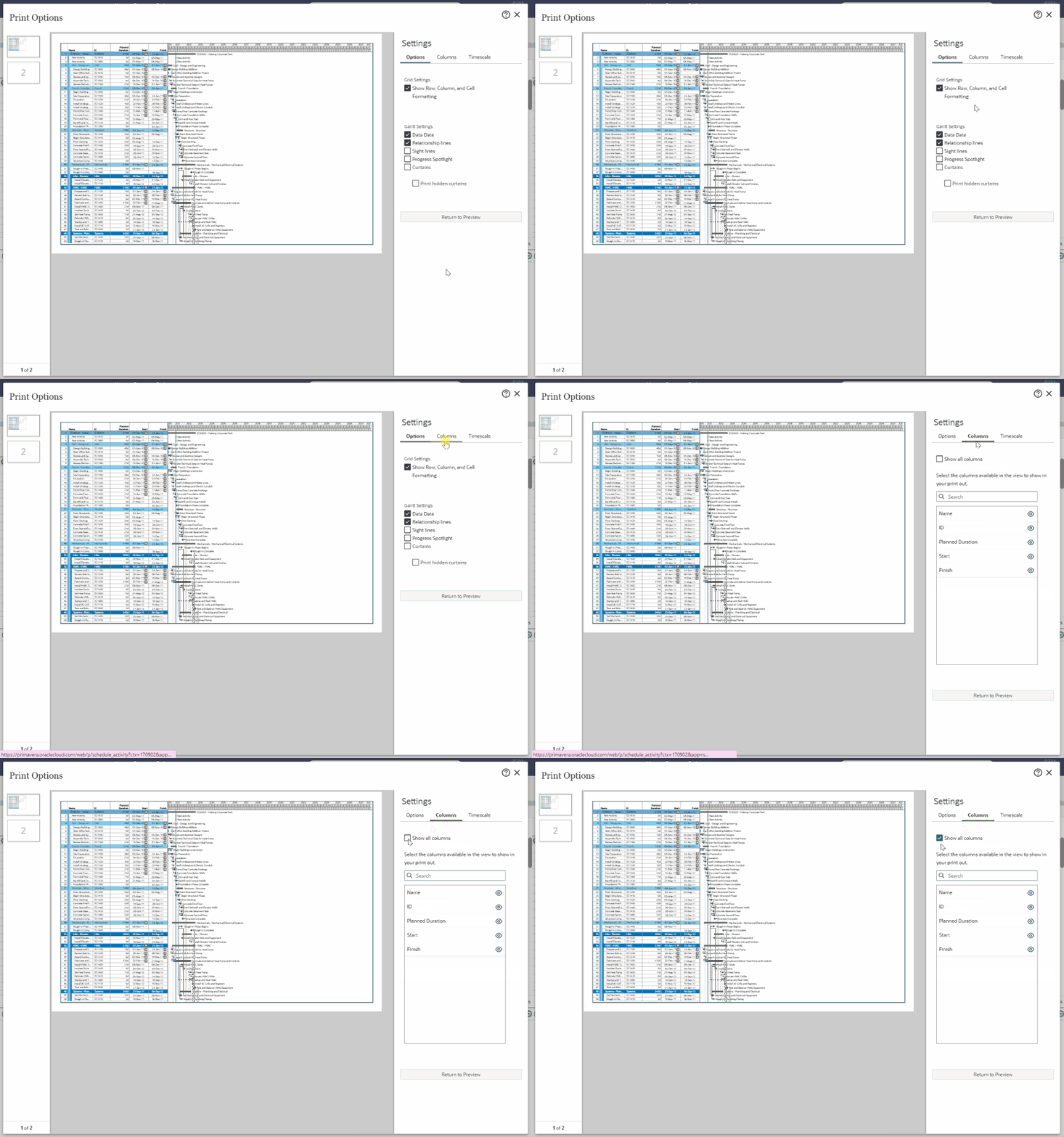
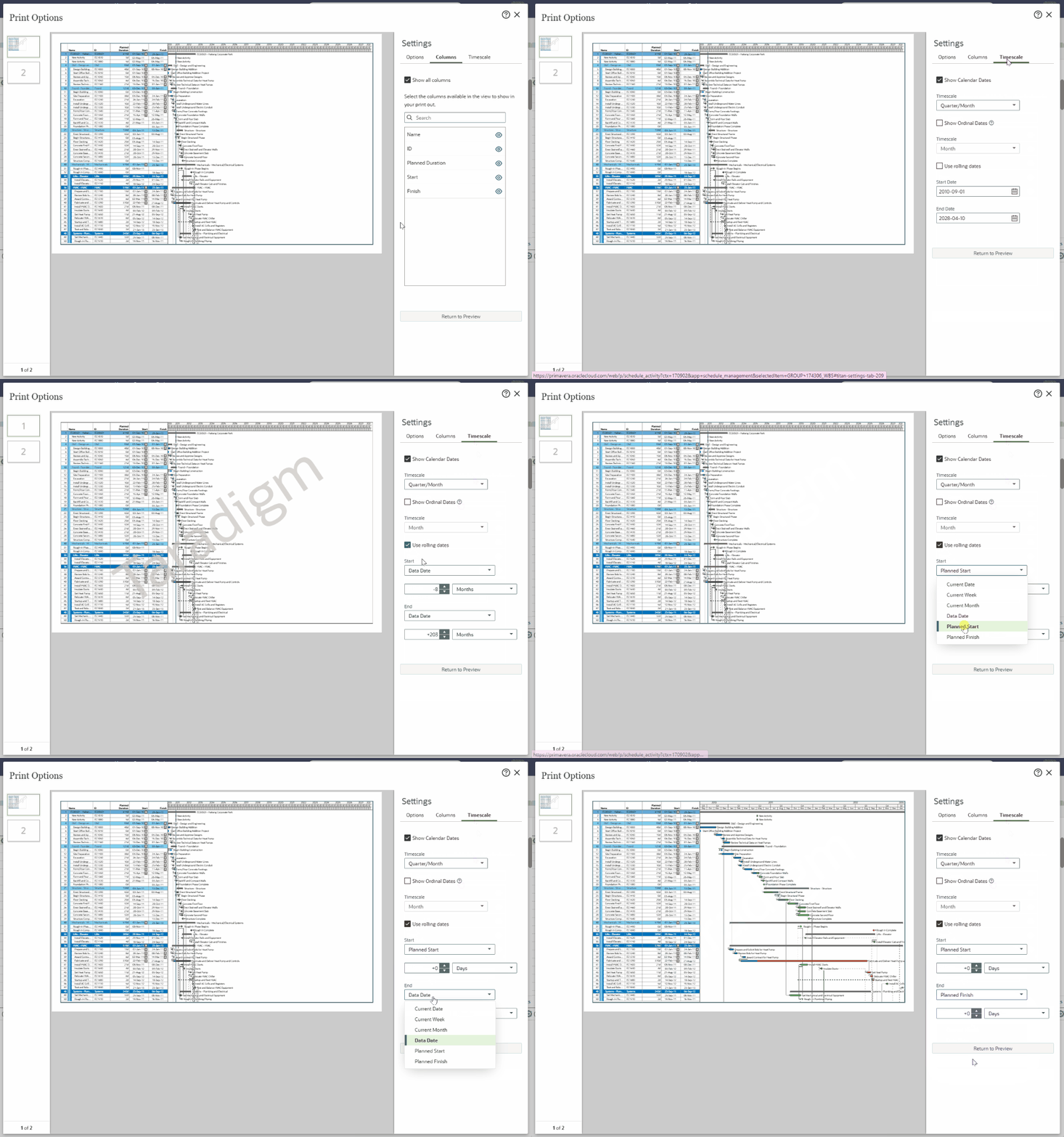
Lastly, the Timescale column allows you to adjust the timescale and when the Gantt Chart begins and ends. I had already adjusted my timescale prior, so I don’t need to adjust this here. For the Start and Finish fields, you can choose to use rolling dates or custom dates. With custom dates, you can choose a date for the Gantt Chart timeline to begin and end. On the other hand, selecting Rolling Dates allows you to choose a variable time frame – such as Planned Start to Planned Finish. I’ll set my Gantt Chart to display the project’s planned start to the planned finish – this will show the entire project timeline.
Edit Header and Edit Footer
If you click back on the print preview, the standard settings screen will display again. When you hover your cursor over the page again, you’ll also find options to edit the header and footer. Both the header and the footer offer the same options. Selecting either Edit Header or Edit Footer will give you more options on the right side of the screen.
Under Settings, you can choose which pages to place the header/footer on – all pages, or just the first or last page. You can also edit the Revision Box here, which you can add to the header/footer as needed.
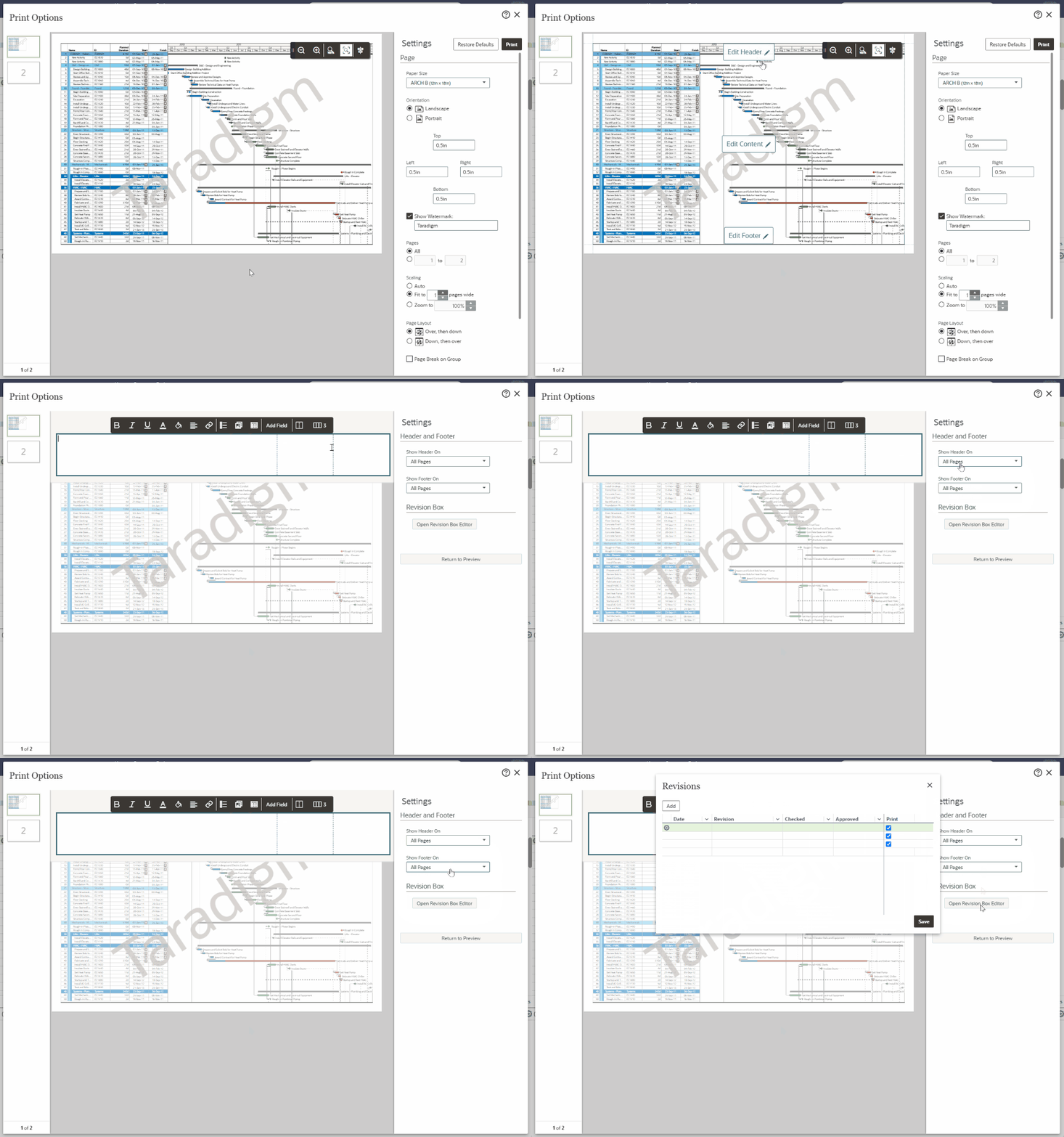
In the main workspace, a new toolbar will appear above the header or footer. Here, you can configure the toolbar sections. First, you can choose how many sections to add to the header/footer – from 1 to 5. By clicking within a section, you can choose what information to display within it. You could enter in text, add a Gantt Chart legend, add images (such as your company logo), or a Revision Box. Additionally, you can add variable data by selecting Add Field.
For my header, I’ll have three sections displayed. In the first section, I’ll place my company’s logo by selecting Add Image > Company Logo. For the second section, I’ll place the project name by selecting Add Field > Project Name. Lastly, for the third section, I’ll place a Gantt Chart Legend. Once you click on the print preview, you will be able to see what this header would look like printed.
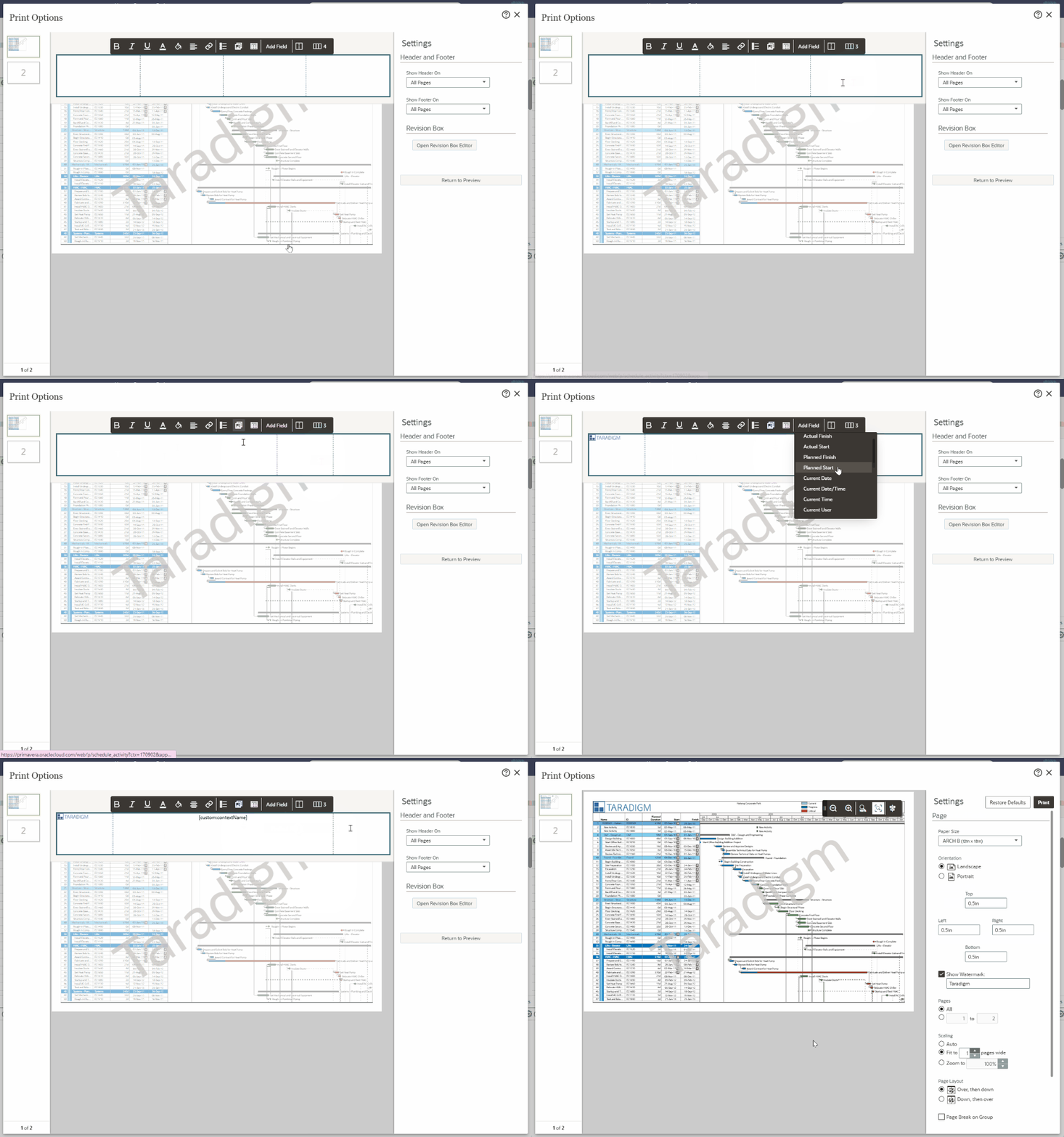
After adjusting the print settings as needed, press Print. You can then choose a printer to print to, or choose to print as a PDF. If your print preview does not display in color, please refer to this article to fix this issue.
Saving Your Print View
After adjusting the print settings, you can save this print layout to a View. Instead of having to customize the print settings each time, you can simply switch to the saved View. Any print out you make with this View will use the same headers, footers, and timeline that you had set.
To save the print settings as a view, select the View menu on the Activities screen. In the dropdown menu, select Save View As. I’ll name this View ‘Print Settings’ so I always know to use it while printing. You can also choose whether to save the view to the User, the Project, or the Workspace. I’ll save this as a Personal view so that no matter which project I have open, I’ll have access to it. Then, press Save.
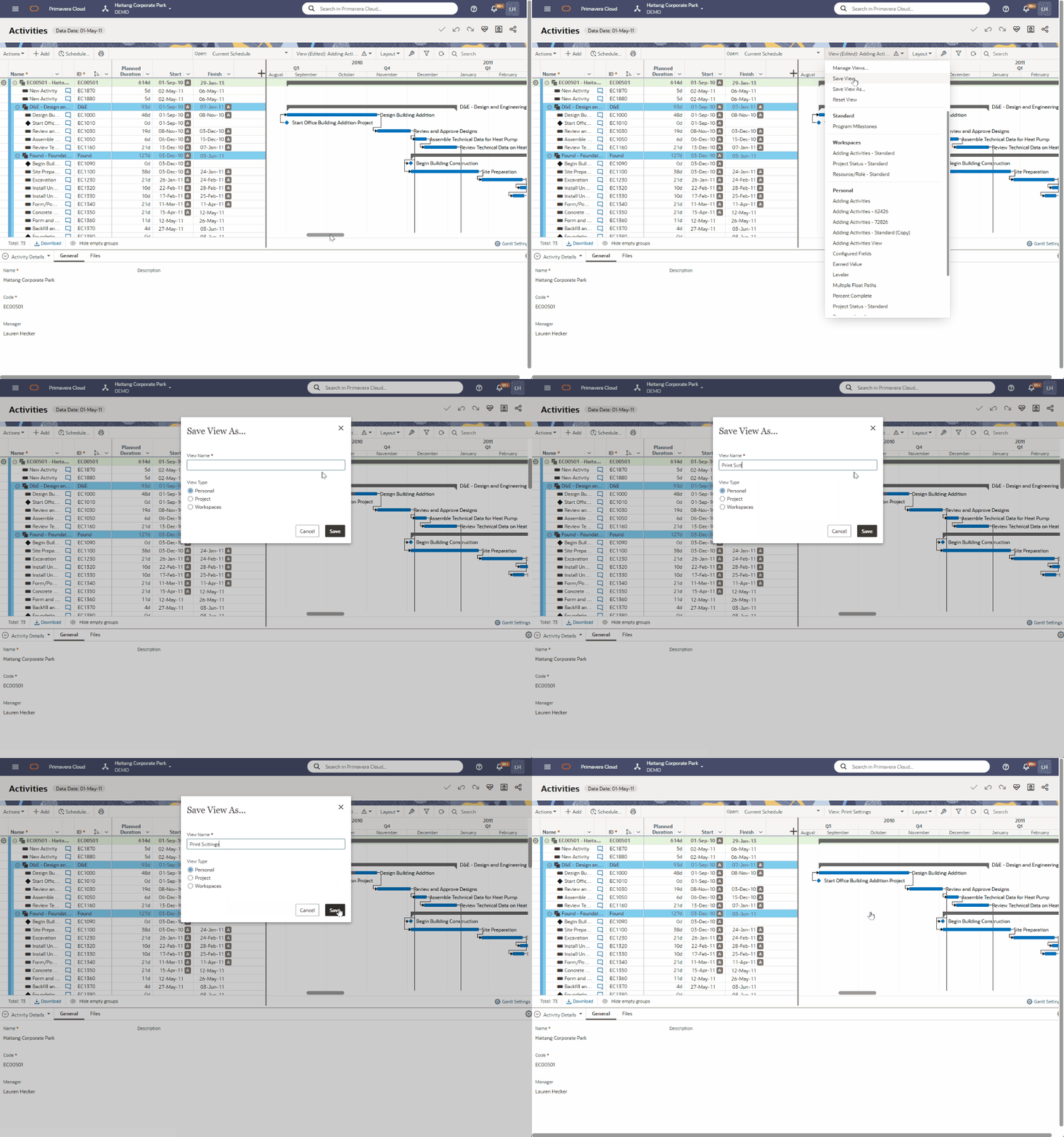
Now, even if I open up another project, I can switch to the Print Settings view. I won’t have to adjust the print settings again – as they are now saved with the View.
Summary
When working on a project schedule, it is important to be able to share project data with others. If someone does not have access to your scheduling program, you will need to print a copy of the schedule to share it with them. In Oracle Primavera Cloud, you can print your project at any time using the Print button. When printing, you can adjust your print layout to match your desired needs. You can show/hide columns, adjust the Gantt Chart timescale, and even configure headers and footers. Once you have set up a print layout in OPC, you can save those settings to a View. You can then use your print View on any project – allowing you to quickly print your schedule with ease.
If you have any comments, questions or suggestions, please use the comment section on the bottom of this page. Don’t forget to subscribe to our blog to get more Oracle Primavera Cloud tips & tricks directly in your inbox!
Lauren Hecker is an Oracle Primavera Cloud. Primavera P6, and Microsoft Project instructor. She teaches both onsite and virtual scheduling courses. To see her next open enrollment course, please visit our calendar. To schedule an onsite or custom course, please contact us!


When I select Microsoft Print to PDF the preview is black and white. I want the color. How?
Hi Jim,
I plan on writing an article on this as it is a common issue with a very simple solution. While in the Print window (not the Print Options – the Print popup where you can choose Microsoft Print to PDF), there should be a section for Options – when expanded, you’ll find a checkbox for Background graphics. If you turn this on, the colors should appear and you can then print as normal!