
In Microsoft Project, it’s important to regularly track your schedule’s health. Especially when working on larger projects, it is not uncommon to run into errors. Microsoft Project will warn you about some errors, such as loops in logic or overallocated resources. However, there are many things that the program will not warn you about – such as missing logic or high float values. You will need to track these potential concerns manually, instead.
There are a variety of best practices when it comes to project management and scheduling. If you’re looking for a full set of guidelines, you may want to read through the DCMA 14-Point Analysis. This document is generally considered the industry standard guideline for schedule health. You will need to track these metrics in Microsoft Project manually. However, the Auto Filter tool can make this process much easier.
In this article, we will cover how to use Auto Filter to track your schedule’s health in Microsoft Project. The following examples are all from Microsoft Project 2021 Professional. However, this process is the same for all desktop versions of Project, from 2013 up.
What is Auto Filter?
Microsoft Project’s Auto Filter tool lets you filter values for a displaying column. Within the Activities table, you’ll find that each column header features a down facing arrow. Selecting this arrow will give you sorting, grouping, and filtering options. Auto Filter allows you to adjust what data appears on the screen, depending on the column selected. You can use Auto Filter to hide any variable displaying within the column. For example, when I select Auto Filter with the Duration column, I’ll see a list of duration values with checkboxes. If I wanted to filter out activities with a certain duration, I would deselect that box. This hides any activity with that duration value in the table.

Auto Filter also allows you to create more nuanced column-specific filters. Let’s say that I only want to see activities that will be starting within the next month. To do this, I’ll select the down facing arrow within the Start column. Under Filters, I have a wide variety of filter options for the selected column. Here, I can choose to only show activities occurring within a certain period, such as Last Month or Next Month.

Auto Filter differs from the Filter tool, as it allows you to filter based on a specific task column. Although you could create these same filters using the Filter tool, Auto Filter allows you to filter these values much quicker.
With Auto Filter, we can quickly search for a variety of problem areas within the schedule. Let’s take a look at how to use Auto Filter to track common schedule issues, such as Open Ends and Negative Lag.
Tracking Open Ends
Logic is very important to track throughout the project schedule. Logic refers to the relationships between activities – it shows which activity will start once one has finished. According to the critical path method of scheduling, all tasks should have both a predecessor and a successor. This means that every activity should be driven by the start or finish of another activity. There are, of course, 2 exceptions to this rule: the first and last task within the schedule. The first task will only have a successor, and the last task will only have a predecessor. You’ll want to make sure that every other activity has at least one predecessor and successor to define your schedule’s logic. Activities with missing relationships are referred to as Open Ends.
To ensure that all tasks have these relationships set in place, you can use the Auto Filter tool. You’ll be using this tool with both the Predecessors and the Successors column, so make sure both are displaying in the table. Starting with Predecessors, select the down facing arrow to access the tool. Within the displaying checkboxes, select the (Select All) option to deselect all values. Then, select (blank). This will show you only tasks that do not have a predecessor assigned. Ideally, you should only see your first task and Summary tasks listed here – these activities should not have predecessors. If any other tasks show, you should make sure to assign them their missing relationships.
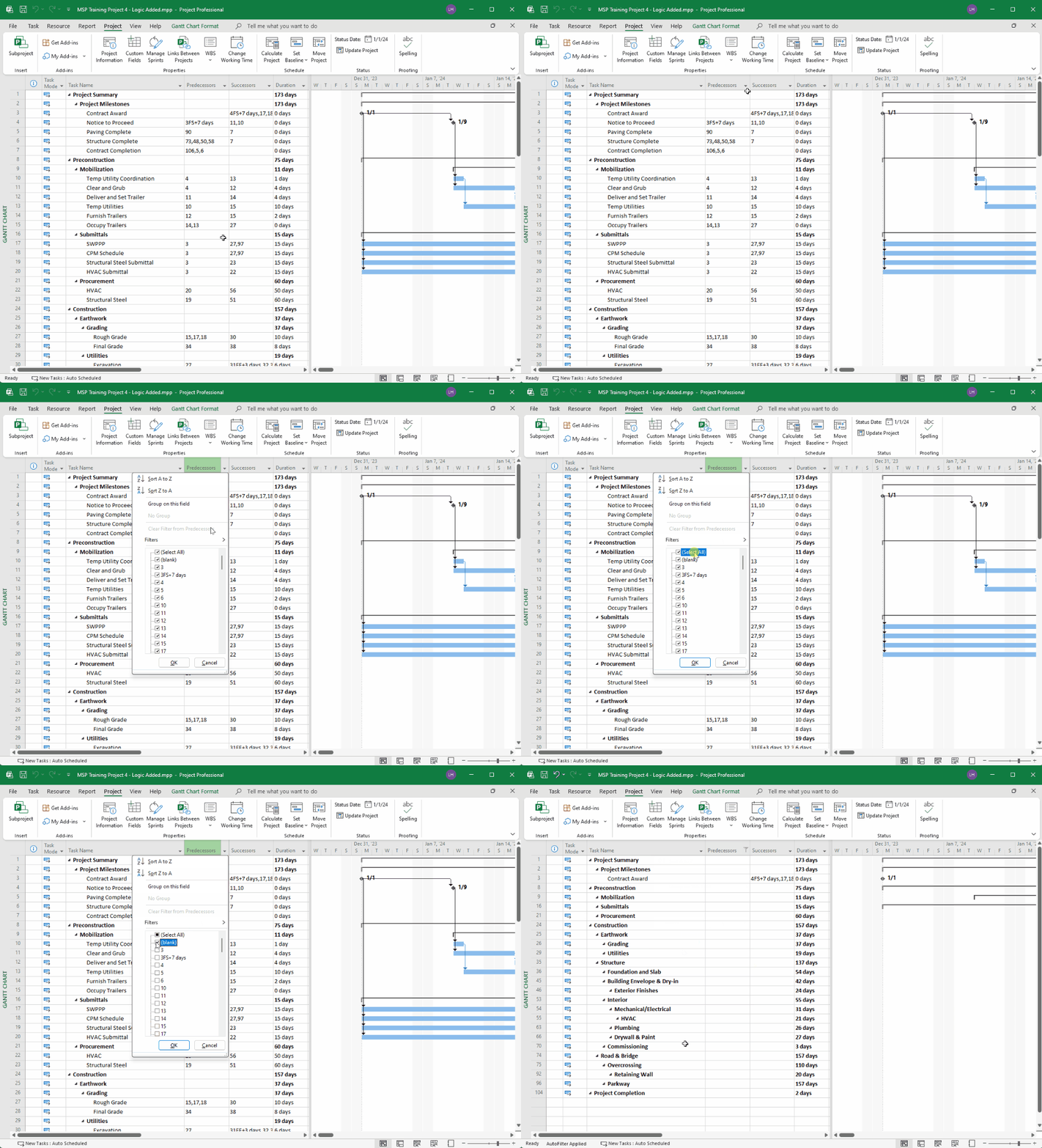
To turn Auto Filter off and view all tasks again, press Select All, and then OK.

You will want to do the same thing within the Successors column. With the (blank) option selected, you should only see the last task and the Summary tasks listed.

Now, we can be sure that this project has a tight logical path. Each activity is both driving and being driven by another.
Tracking Negative Slack
Another scheduling concern that you may want to watch out for is Negative Slack. Negative slack, also known as negative float, indicates that the project will not finish on time. Put simply, negative slack is the number of days the project is behind its completion date. For example, if you have -5d of Total Slack, that means that you are set to finish the project 5 days behind schedule. Negative slack will not come out of nowhere – it is the result of actions you perform on the schedule. The most common reason for negative slack is the use of constrained activities.
Because negative slack can affect your project’s completion, you should deal with it before the project begins. Just like with open ends, you can track negative slack using Auto Filter. Negative Slack will appear as a negative number within the Total Slack column – so make sure that column is open within the table. You could use Auto Filter to search for a certain amount of slack. However, in this case, we want to view all tasks that have slack below 0d. We can do this with Auto Filter as well.
Under Filters, you can enter in custom values – such as greater than or less than. In this case, select Less Than. The Custom Auto Filter window will open, and you’ll enter in 0. The filter will turn on and only show tasks with slack that’s less than 0 days – or negative.

If you have any activities with negative slack, you should try and remove it. You can remove negative slack using a schedule compression technique, such as crashing or fast tracking. Again, to turn off the filter, select Auto Filter again and press Clear Filter.
Tracking Negative Lag (Leads)
Negative Lag, or leads, allow you to overlap two activities so the successor starts before the predecessor finishes. Although the program does allow you to apply negative lag, it’s often prohibited by contracts. The use of leads distorts total float in the schedule and may cause resource conflicts. Ideally, you’ll want no activities with negative lead.
You can use Autofilter to track for this using either the Predecessors or the Successors column. Within Autofilter, select Filters > Contains and enter in a –. Any activities with a negative lag value will appear.

Like with other metrics, you should remove any negative lag from the schedule. If you need to overlap activities, you can instead use a SS relationship and positive lag. This will allow the successor to start before the predecessor finishes – the same result as using negative lag.
Tracking High Slack
Along with Negative Slack, you should also track your tasks for High Slack values. Again, Slack (or float) is the amount of time that you can delay an activity without delaying the project’s completion. Although slack is generally a good thing, high slack values indicate that the activity is missing relationships. According to the DCMA 14-Point Analysis, activities should not have a Total Slack value that exceeds 40 days.
You can use Auto Filter to track this using the Total Slack column. Within Auto Filter, select Filters > Greater Than and enter in 40d. Any activities with a high slack value will appear. Most likely, these activities are missing relationships, causing the high slack. You might want to reference the activities that appeared when looking for open ends. Assigning relationships to these activities together will most likely solve the problem.

Tracking High Duration
You may also want to track your activity duration values to ensure that they’re not too high. Large durations are not always a cause for concern. For example, procurement activities generally have long durations. However, construction activities with longer durations are generally harder to manage and update. If you have a lot of activities with large durations, you might want to break them down into shorter tasks. This will help you as you update the project’s progress, and give more insight into cost breakdowns. According to the DCMA 14-Point Analysis, construction activities should not exceed 40 days of duration.
You can use Auto Filter to track this using the Duration Column. Within Auto Filter, select Filters > Greater Than and enter in 40. Any activities with a high duration value will appear. If you have construction activities with large durations, you should break them down into smaller sub-tasks.

Summary
In project management, it’s important to regularly track your schedule for errors. Luckily, Microsoft Project will warn you about major schedule errors – such as loops in logic or overallocation. However, there are a variety of measures you’ll need to manually track, as well. Errors such as negative slack or open ends can affect the completion of your project. Therefore, it’s important to identify these before the project begins. In Microsoft Project, you can track a variety of health measures using the Auto Filter tool. With Auto Filter, you can filter down values within a specific column – such as Successors or Total Slack. Using Auto Filter, you can quickly analyze your project against a variety of schedule analysis metrics. It’s recommended to run these checks on your schedule after every status update. This can help ensure that your project finishes on time and within budget.
If you have any comments, questions or suggestions, please use the comment section on the bottom of this page, and don’t forget to subscribe to our blog to get more scheduling tips & tricks directly in your inbox!
Lauren Hecker is a Microsoft Project, Primavera P6, and Oracle Primavera Cloud Instructor who teaches onsite and virtual scheduling courses. To see her next open enrollment course, please visit our calendar. To schedule an onsite or custom course, please contact us!


0 Comments